Backup calling over the cell network
Goal: "My Wi-Fi or data is spotty, but I still need to take calls." Route CareQB calls through regular phone service instead.
The CareQB mobile app makes calls over the internet. If your connection is weak, CareQB can call your cell number directly instead.
Set it up
- Open Settings and add Your cell # (10-digit US number).
- Ask your Admin, or check your notification rules, so your cell number is set to ring for calls.
Tip: Save your agency's CareQB numbers as contacts on your phone so you recognize these calls.
Answering calls
- Calls ring your cell like a normal call, showing your agency's CareQB number (the line the caller dialed).
- When you pick up, you'll hear "Call from [contact name]. Press any key to connect." Press any key to take the call, or hang up to let it keep ringing for the team.
Why press a key? It lets you screen the call. It also stops your voicemail greeting from "answering" the call while the rest of the team is still ringing.
Making calls: Send to my phone
From any chat (mobile or desktop), choose Send to my phone:
- CareQB calls your cell from the CareQB number.
- When you answer, CareQB dials the other person and connects you.
- They see your agency number, never your personal one.
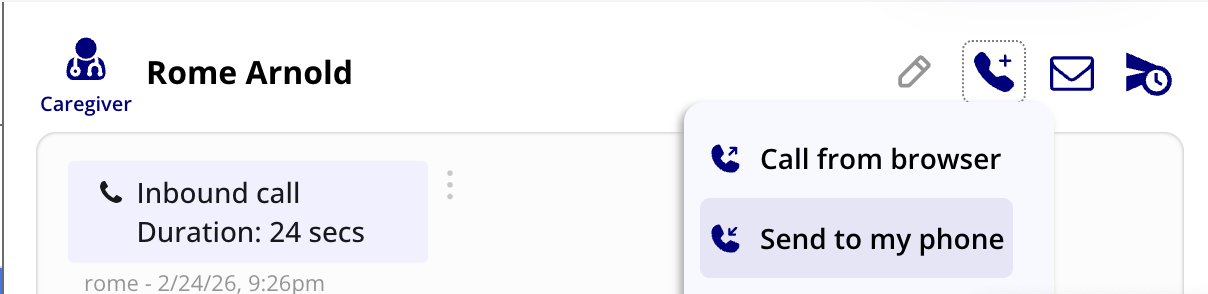
Also handy at your desk. If you'd rather talk on your cell than your headset, use Send to my phone from the desktop app.
Related: Getting set up for calls