How chats and threads work
Goal: Find any conversation quickly, understand what CareQB is tracking inside it, and save important exchanges (like an incident report) so you can find them later.
The big picture
- A chat is the full, ongoing conversation with one phone number, or with a group of numbers in a group text. Every text, call, voicemail, and internal comment with that contact lives in one timeline.
- A thread is a slice of a chat with a specific purpose: a fill-in request, a callout, a missed clock-in check, a relay, or an incident you chose to save. Threads let CareQB (and you) track one topic from start to finish, even while the overall conversation keeps going.
flowchart LR
  A[Chat with Maria<br/>every text, call & comment] --> B[Thread: Fill-in request<br/>Sat 9am shift]
  A --> C[Thread: Missed clock-in<br/>Tue]
  A --> D[Thread you saved:<br/>Client safety incident]
Chats are shared. Everyone on your team sees the same conversations, and each outbound message shows who sent it. Read/unread status is shared too.
Finding a conversation
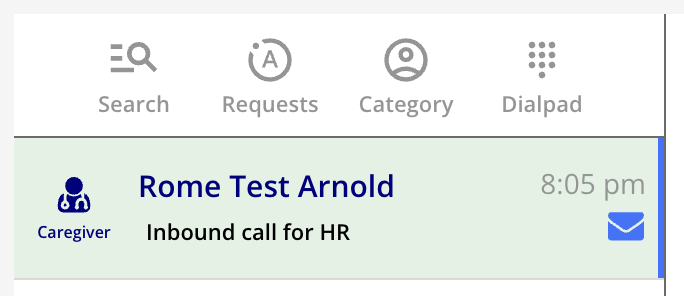
Open Chats. At the top of the conversation list you'll find:
| Tool | Use it to… |
|---|---|
| Search | Find someone by contact name, phone number, or client (this shows everyone tied to that client) |
| Search messages & transcripts | Find a phrase anywhere in texts or call transcripts |
| Search profile notes | Find caregivers or clients whose notes mention something, such as "Spanish" |
| Unread only | Show only conversations waiting on a reply |
| Requests | Show only conversations with an open request. Turn on Hide open requests? to do the opposite. |
| Category | Filter by contact type, such as Caregiver, Client, Advocate, or Candidate |
| Dialpad | Type a number to call it, or find the contact it belongs to |
Starting a new conversation
- In Chats, choose Add new → new contact.
- Enter a 10-digit US number without a leading 1 or +1.
- If the number already exists, CareQB offers to open that chat instead.
- (Optional) Add a name and assign a contact type:
- Caregiver: you must link them to an existing caregiver synced from your scheduling software. Use their name exactly as it appears there.
- Client contact (Advocate, Associate, etc.): link them to the client's profile.
- Candidate, Prospect, Referrer: no link needed.
- Click Create contact.
Group texts: choose Group MMS to text up to 9 people together, for example several family members of one client. You can label the group and add names after it's created.
Inside a conversation
Sending messages
- Use template? inserts a saved message. See Message templates.
- Attach media? attaches one image per message (png, jpg, or gif, up to 3MB). For privacy, images are deleted from CareQB's media cache 30 minutes after sending.
- Ctrl/Cmd + Enter sends.
- Check your sending number (bottom of the box) before you send.
⚠️ HIPAA reminder: avoid putting protected health information (PHI) in text messages. CareQB shows a reminder when it thinks a message might include PHI.
Calls from a chat
The call icon gives you Call from browser (or Call from the app on mobile), Send to my phone, and Reserve callback?. Reserving a callback makes this contact's next call ring only for you, for as long as you choose. See Routing calls.
Actions on a message (⋮)
Hover over any message or call and click the action dots to:
- Add comment or Assign this as a task. See Keeping your office in sync.
- Create thread from this message? saves the exchange as a thread (see below).
- Post to Slack Channel? shares it with your team in Slack (if connected).
- For calls: Play call recording, Generate / Show summary, Show ring list (who it rang for), Restrict call recording, and Add call as Profile Note in ERP, which posts a summary to the caregiver's or client's profile in your scheduling software where supported.
If a caregiver texts something that looks like an availability change, you'll see Availability update? Click to process. See Caregiver availability.
The side panel
The right-hand panel shows who you're talking to:
- Their profile details and the client(s) they're associated with
- Adjust contact: preferred and formal name, contact type, Assign to a synced caregiver, merge duplicate profiles, and Suppress incoming call greetings (useful for contacts who call often)
- For client contacts: Add to Primary Contacts. Primary contacts receive client communications and can use the Relay System.
- Upcoming scheduled messages for this contact
- Contact Intelligence observations, if enabled. See Contact Intelligence.
Signs that CareQB is working in the background
| You see… | It means… |
|---|---|
| A small green A on the chat | CareQB is listening for replies related to an active request or automation |
| CareQB AI is thinking | The AI is reading a new message and deciding what to do |
| A dashed banner at the bottom | A scheduled message will send within 30 minutes. You can Send now, edit, or Cancel send. |
| Relay scheduled / Relay requires user input | A relay is pending or needs you |
See Working alongside CareQB AI for more.
Threads: tracking a topic from start to finish
Threads CareQB creates for you
Many automations open a thread automatically: fill-in requests, callouts, shift reminders, missed clock-in checks, care plan check-ins, availability requests, and relays. Opening one shows the Conversation context: which shift, which request, and what the caregiver was offered. Request threads also include actions such as Accept All / Decline All, Assign & send update, and Close thread.
When a thread is closed and the caregiver writes again later, you can Reopen with message. CareQB reminds you to restate the context, because the caregiver may not remember the earlier exchange.
Saving a thread yourself
Use this when a conversation needs to be on record, such as a client safety incident, a performance issue, caregiver feedback, or a nice client anecdote.
- On the first relevant message, click ⋮ → Create thread from this message?
- Choose a type, give it a label, and optionally add a summary.
- Click Save thread of messages.
The Threads tab
Open Threads to:
- Filter saved threads by date range and type, or search by name or label.
- Review anything flagged for review. Clear flags with Resolve flags once handled.
- Print threads: select one or more threads and Create printable page, for example for an HR file or a client care review. Past printable pages are listed under Recent printable pages.