Configuring call greetings
Goal: Have callers hear your agency's voice, with a warm welcome and clear options, instead of a generic robot.
Where: Settings → Agency Settings → Pre-connect Call Audio Customization (agency-wide clips), and each IVR ruleset → Add Custom Recording (menu options)
How the greeting is built
CareQB assembles the greeting for each call from short clips, based on the rules active at that moment:
Welcome Greeting → Extension Notice → Schedule Readout (clients only) → Menu options → Callback (#9) → Operator (#0)
- A clip only plays if its feature is on. For example, there's no extension notice when extensions are off.
- If a feature is on but you haven't recorded its clip, CareQB reads it with text-to-speech (TTS).
- Because clips are assembled live, you don't need separate recordings for every time of day.
Agency-wide clips
| Clip | When it plays |
|---|---|
| Welcome Greeting | Start of every call. Prefer typing? Enter a welcome message for TTS instead. |
| Extension Notice | When extensions are enabled ("If you know your party's extension…") |
| Schedule Readout (#1) | To clients, offering to read out their next 3 shifts |
| Callback Recording (#9) | When callback requests are on |
| Operator Route (#0) | Offering to ring the whole team |
These are shared by every ruleset.
Menu option recordings (digits 2–8)
- Open an IVR ruleset on the calendar → Add Custom Recording.
- CareQB shows the options currently set for that ruleset as a script to read. Options are read in order, from left to right.
- Choose New Recording and give it a label, or Use Existing to reuse a clip.
- Apply to Rule.
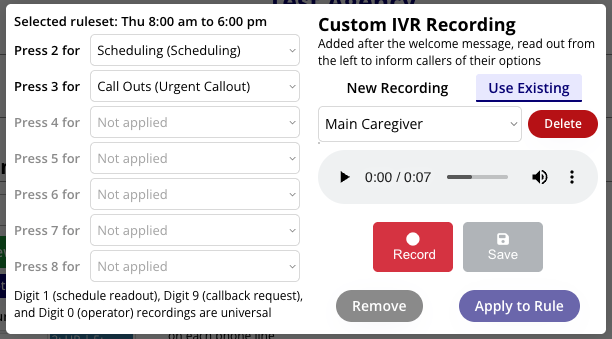
Reuse recordings. Apply one labeled recording to every ruleset with the same options. If you re-record it later, the change applies everywhere it's used. Deleting a recording removes it from every rule using it, and CareQB asks you to confirm first.
Rulesets with no menu (default group)
If a ruleset sends callers straight to a group (for example, all caregivers to Scheduling), there's no menu to read. You can still record a short message, such as "Connecting you to our scheduling team", or a quick note about your services for prospective clients.
Voicemail greetings
- Agency default: in the phone routing Default rules, choose Default voicemail – Recording (or type Default voicemail – TTS and click Play pronunciation to check it). A recording is used instead of TTS when available.
- Per group: set Custom Voicemail Recording? on a user group.
See When nobody answers.
Tips
- Keep the welcome short. Callers want their options quickly.
- Mention your callback option in busy periods so callers don't wait on hold.
- Re-record after menu changes. CareQB's script reminds you which options are live.